Getting started (Android & iOS)
Welcome to Rustine! Rustine is a set of libraries and tools that help you mix Rust and Kotlin, so you can focus on implementing your business logic. In this tutorial, you will learn how to embed Rust code into your Kotlin Multiplatform project using Rustine. If you have trouble setting up your project, please create a question in GitHub Discussions.
Prerequisites
To develop with Kotlin Multiplatform, you need:
- An IDE for Android development, such as Android Studio or IntelliJ IDEA.
- (Optional) The IDE for iOS development: Xcode.
You'll spend much time with Android Studio or IntelliJ IDEA to code in Kotlin. Xcode is required to build iOS apps.
To develop in Rust, you need:
- A Rust toolchain, version 1.88 or higher.
- An IDE for Rust. Several options are available:
- Visual Studio Code with
rust-analyzer. - RustRover.
- IntelliJ IDEA Ultimate with the Rust plugin.
- Other editors like Vim. Still, using
rust-analyzeris recommended.
- Visual Studio Code with
You'll use a separate IDE for Rust development. The only way to use a single IDE is IntelliJ IDEA Ultimate, but it needs a paid subscription.
Creating a Kotlin Multiplatform project
Let's first create a new Kotlin Multiplatform project. Please read the official documentation for more details about how Kotlin Multiplatform works.
- Visit the Kotlin Multiplatform Wizard website.
- On the New Project tab, set the Project Name and Project ID to names you want. Let's
use
MyFirstRustineProjectanddev.lidory.rustine.myfirstproject. - Make sure you selected Android and iOS.
- Select Share UI (with Compose Multiplatform UI framework). You can use Rustine without Compose Multiplatform, but let's focus on how to mix Rust and Kotlin this time.
- Click the Download button and extract the downloaded
.zipfile. - Launch Android Studio or IntelliJ IDEA, and open the extracted folder.
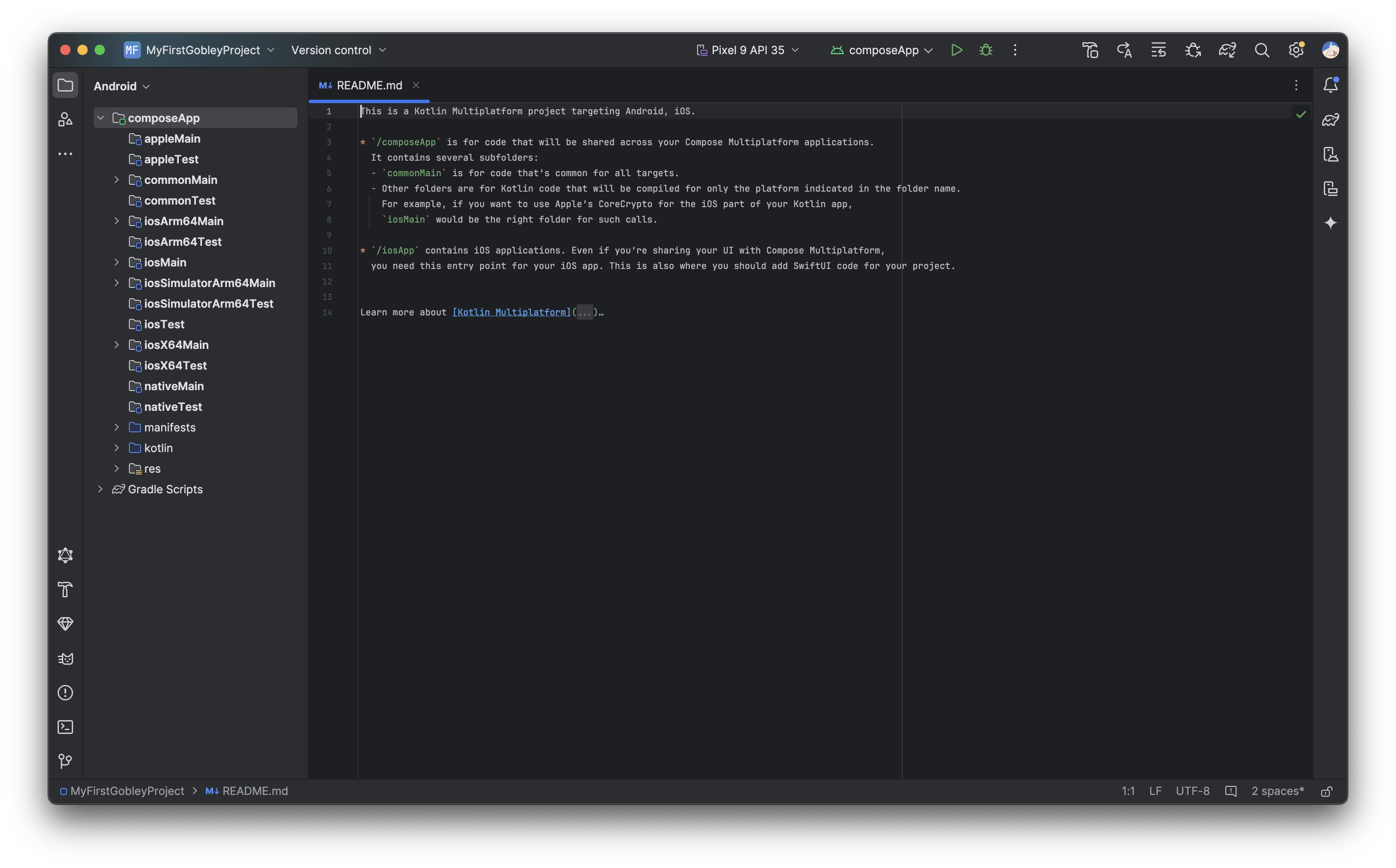
The generated project uses the Android Gradle plugin (AGP) 9. The code shared between Android and
iOS is located in the shared module, which is a Kotlin Multiplatform library using the
com.android.kotlin.multiplatform.library plugin. The Android app is located in a separate
androidApp module depending on shared. We'll add Rust to the shared module.
💡 The screenshots in this tutorial were taken with an older version of the wizard, which generated a single
composeAppmodule containing both the shared code and the Android app. If your project still has that layout, please migrate it to AGP 9 first. See Migrating to AGP 9 for details.
Adding Rust to your Kotlin Multiplatform project
Let's add a Cargo package to the Kotlin Multiplatform project.
-
Make sure you installed
cargoandrustup. -
Open the Terminal menu in Android Studio or IntelliJ IDEA. Run:
cargo init --lib --name shared --vcs none sharedLet's see what this command does:
cargo initwill create a new Cargo package inshared.--libmeans that Cargo will create a library crate.--name sharedmeans that the name of the resulting Cargo package will beshared. If your module has a camelCase name likesharedUI, use a kebab-case name likeshared-ui. Cargo doesn't like camelCase.--vcs nonemeans you don't want to generate.gitor.gitignore.sharedis the directory where we'll code both in Rust and Kotlin.
After running this command, the following files should be generated:
shared/Cargo.toml: This file contains the definition of the Cargo package.shared/src/lib.rs: The Rust source code file.
-
Add
**/target/to.gitignore.💡 This is the folder where Cargo stores the build intermediate files and the final Rust library.
-
(Optional) Move
shared/src/lib.rstoshared/src/commonMain/rust/lib.rs.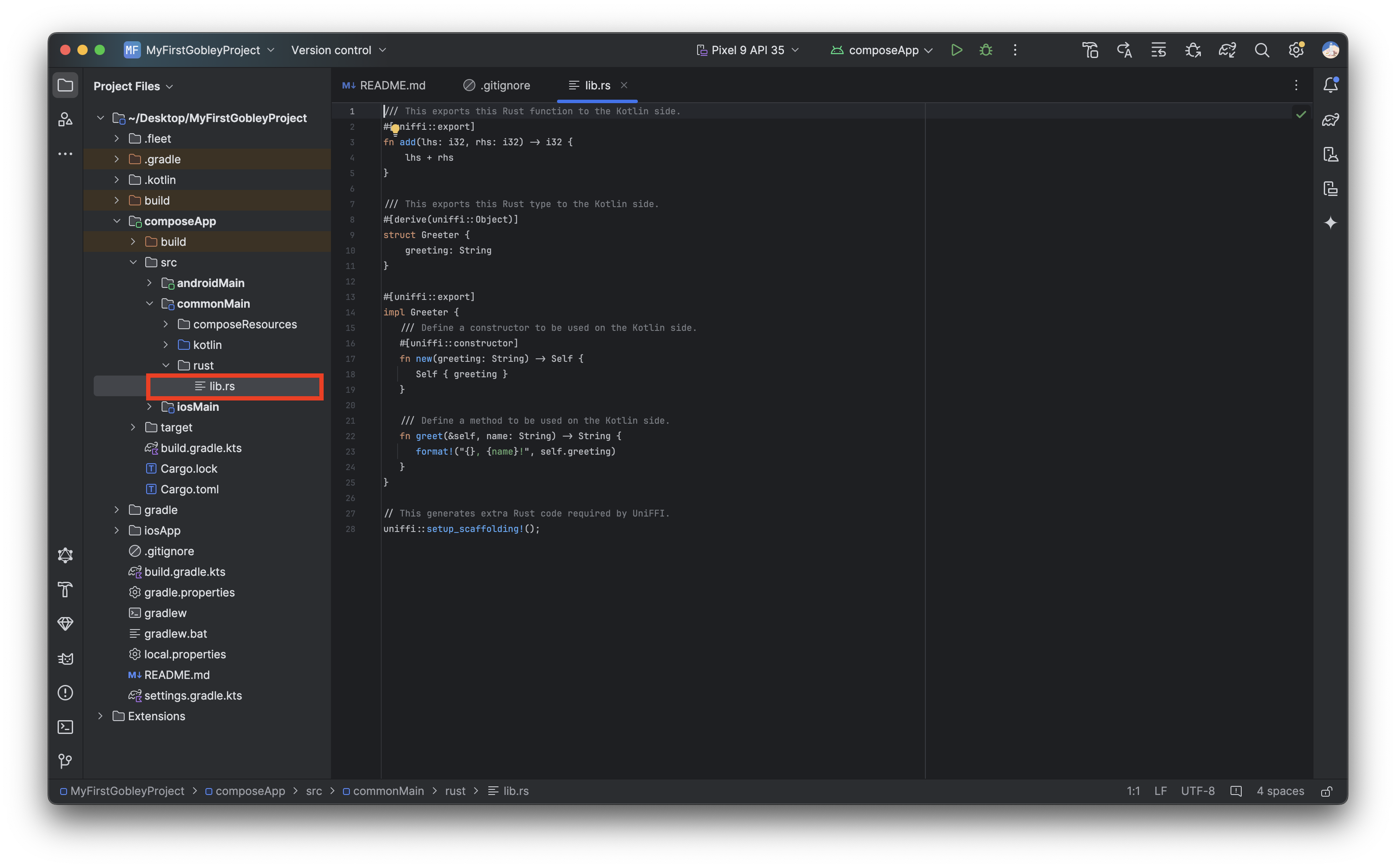
💡 When you use CMake in an Android project, C++ source files are usually located in
src/main/cpp. This procedure imitates that behavior. It feels more organized, isn't it? -
Modify
shared/Cargo.tomllike the following.# This part is already added by cargo init.
[package]
name = "shared"
version = "0.1.0"
edition = "2024"
[dependencies]
# We need to add this.
uniffi = "0.32.2"
# This as well.
[lib]
crate-type = ["cdylib", "staticlib"]
# Put this only if you moved lib.rs.
path = "src/commonMain/rust/lib.rs"Let's see what each part of the modification does:
uniffi = "0.32.2"downloads UniFFI, the library used to generate the Kotlin code (the " bindings") that calls the Rust library. The version must be the one targeted by the bindgen of your Rustine version, which is UniFFI 0.32.2 for Rustine 1.0.0. See Versioning.crate-type = ["cdylib", "staticlib"]will make Cargo generate a.a(static library) file and a.so/.dylib(dynamic library) file that can be used by Rustine. Rustine uses the static library file when building for iOS, and the dynamic library file for Android.path = "src/commonMain/rust/lib.rs"designates the path to the Rust source code.
-
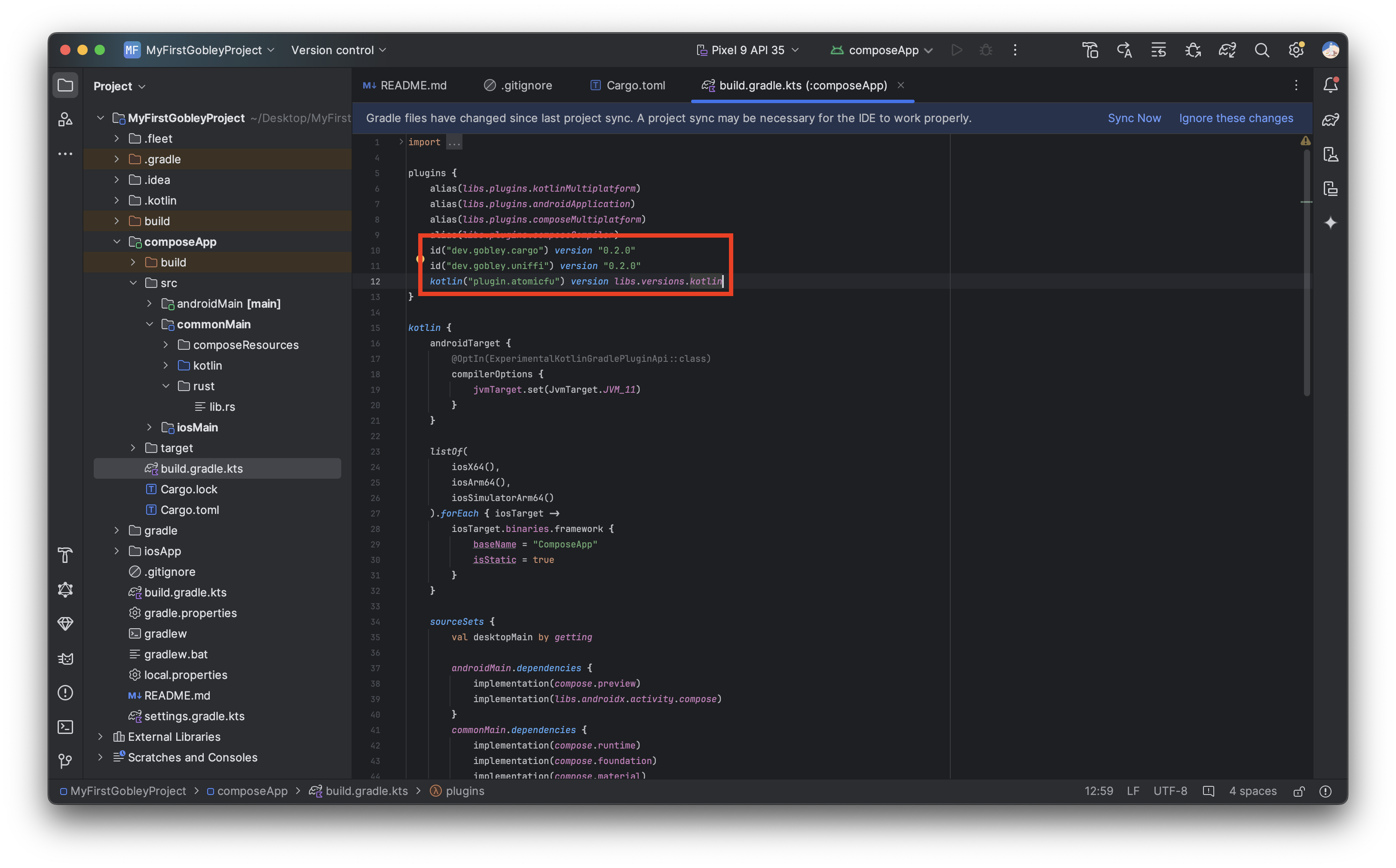
Modify
shared/build.gradle.ktslike the following.plugins {
// Other plugins here, including com.android.kotlin.multiplatform.library
id("dev.lidory.rustine.cargo") version "1.0.0"
id("dev.lidory.rustine.uniffi") version "1.0.0"
kotlin("plugin.atomicfu") version libs.versions.kotlin
}❗ Apply the Rustine plugins to the
sharedmodule, not to theandroidAppmodule. The Rust library embedded intosharedis included in the Android app through the dependency onshared.❗ Rustine requires AGP 9.1 or higher. See Requirements.
❗ Consider managing plugin dependencies using version catalogs.
💡 All Gradle plugins in Rustine are published in
mavenCentral().Let's see what each plugin does:
dev.lidory.rustine.cargobuilds and links the Rust library to the Kotlin application.dev.lidory.rustine.uniffigenerates the bindings using UniFFI. You can change the package name of the bindings inside theuniffi {}block.org.jetbrains.kotlin.plugin.atomicfuis to use atomic types used by the bindings.
⚠️ As
com.android.kotlin.multiplatform.librarydoesn't have build types, the Cargo plugin chooses the build of the Rust library embedded intosharedby the tasks you run. When you run a release or publishing task likeassembleReleaseorbundleRelease, the release build is used. Otherwise, e.g., when you run./gradlew build, the debug build is used even for the release version of the Android app. Before releasing your app, read Be careful of the build variant used during publishing.
We're now ready to code both in Rust and Kotlin!
❓ If you hit the Sync Now button at this point, you'll get a
Crate shared not found in libshared.soerror. That's because you haven't useduniffi::setup_scaffolding!();inside the Rust code. If you encountered such an error, go straight to the next step.
Defining and exposing Rust types and functions
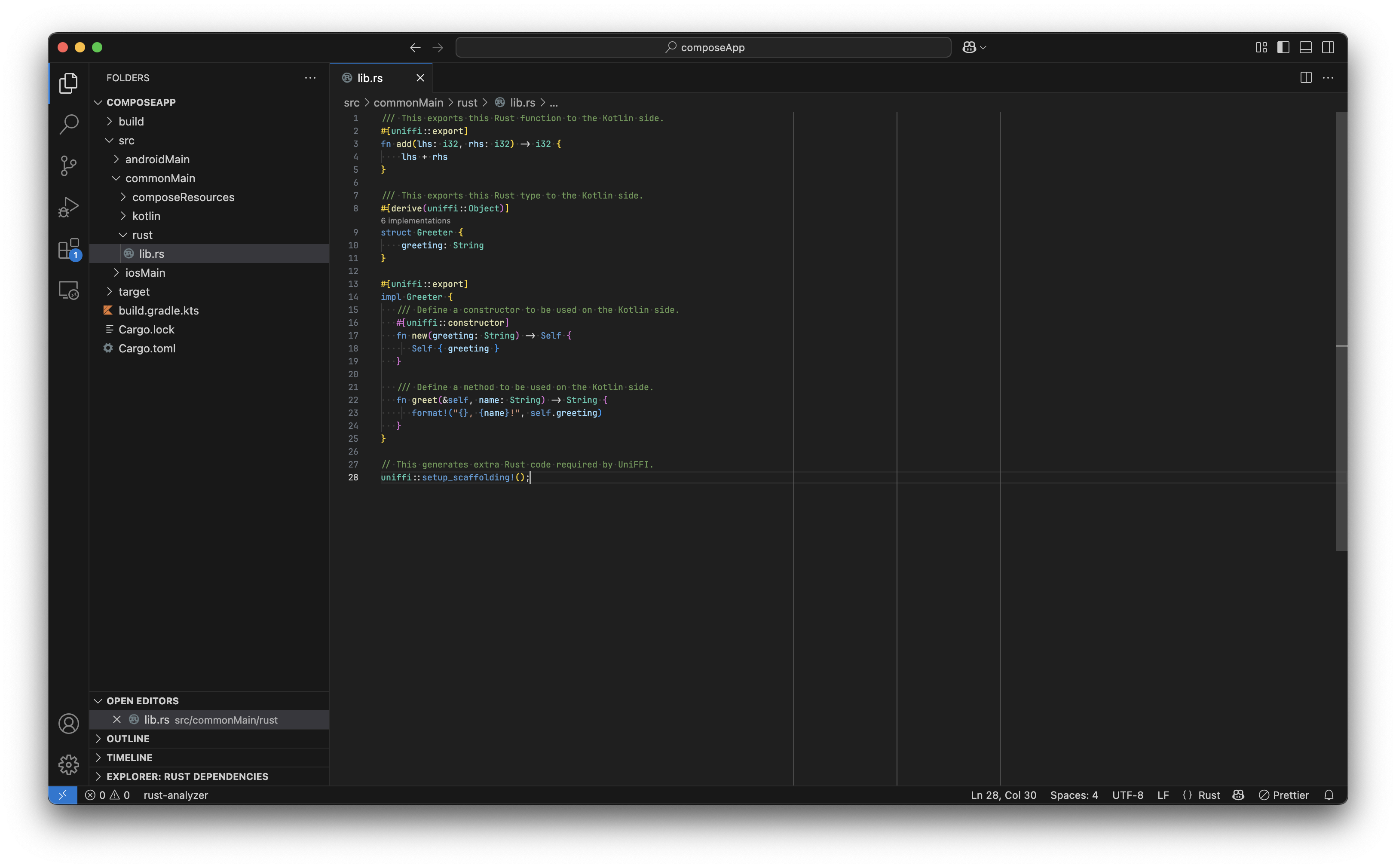
Now is the time to code in Rust. Open shared in Visual Studio Code.
code ./shared
# or on macOS
open -a "Visual Studio Code" ./shared
Once rust-analyzer is ready, you can see highlightings and inlay hints in the code editor. Modify
src/commonMain/rust/lib.rs as follows.
/// This exports this Rust function to the Kotlin side.
#[uniffi::export]
fn add(lhs: i32, rhs: i32) -> i32 {
    lhs + rhs
}

/// This exports this Rust type to the Kotlin side.
#[derive(uniffi::Object)]
struct Greeter {
    greeting: String
}

#[uniffi::export]
impl Greeter {
   /// Define a constructor to be used on the Kotlin side.
   #[uniffi::constructor]
   fn new(greeting: String) -> Self {
      Self { greeting }
   }

   /// Define a method to be used on the Kotlin side.
   fn greet(&self, name: String) -> String {
      format!("{}, {name}!", self.greeting)
   }
}

// This generates extra Rust code required by UniFFI.
uniffi::setup_scaffolding!();
By just applying #[uniffi::export] or similar macros, the functions and the types become available
on the Kotlin side. Go back to Android Studio and press the Sync Now button.
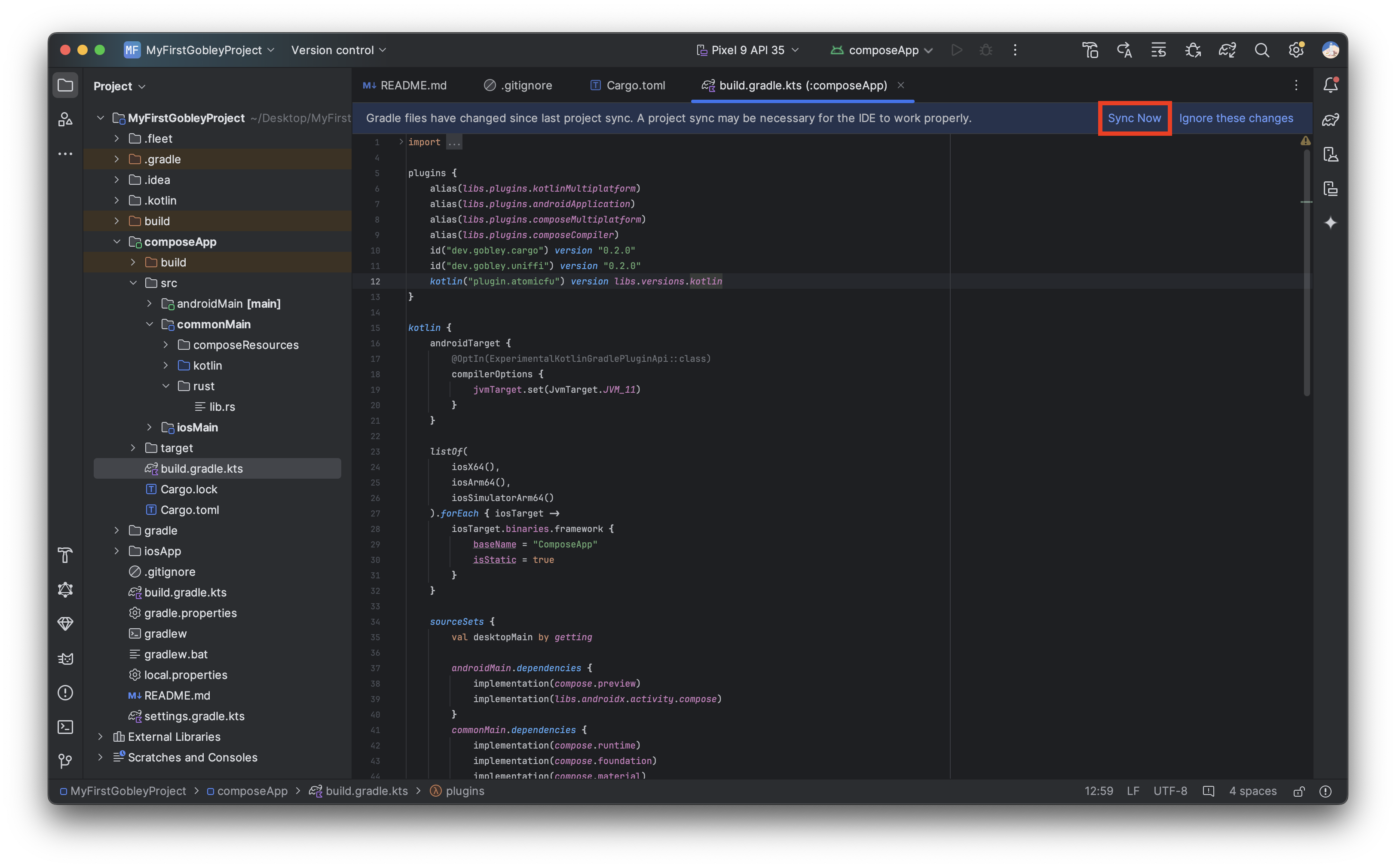
Cargo will start
building the Rust library inside Android Studio. After the build completes, open App.kt in the
commonMain source set of the shared module (e.g.,
shared/src/commonMain/kotlin/dev/lidory/rustine/myfirstproject/App.kt). Add the following lines to the
part you prefer:
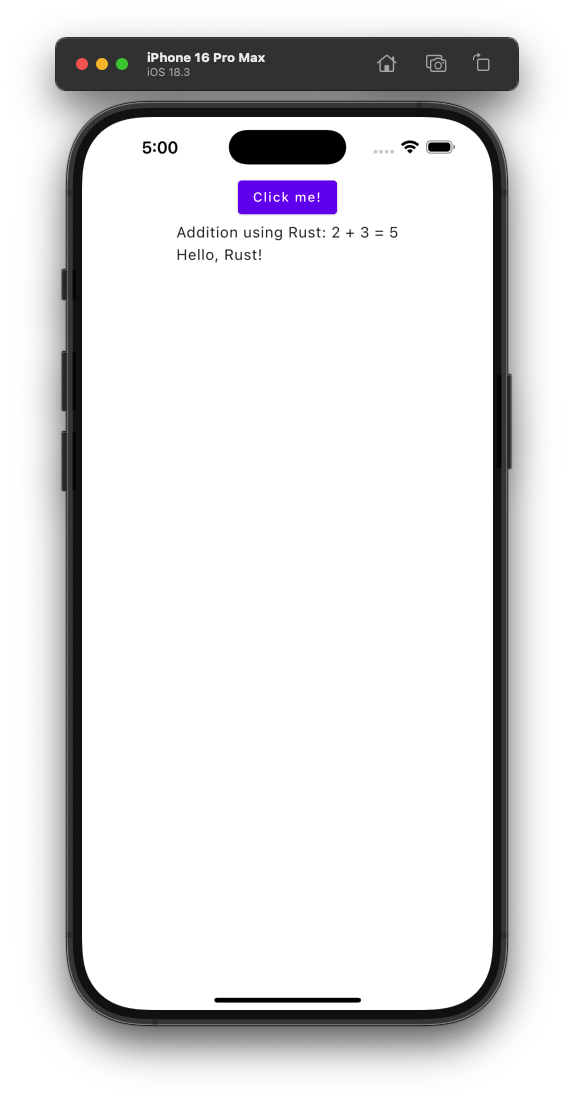
Column {
    Text("Addition using Rust: 2 + 3 = ${uniffi.shared.add(2, 3)}")
    val greeting = remember { uniffi.shared.Greeter("Hello") }
    Text(greeting.greet("Rust"))
    DisposableEffect(greeting) {
        onDispose {
            greeting.close()
        }
    }
}
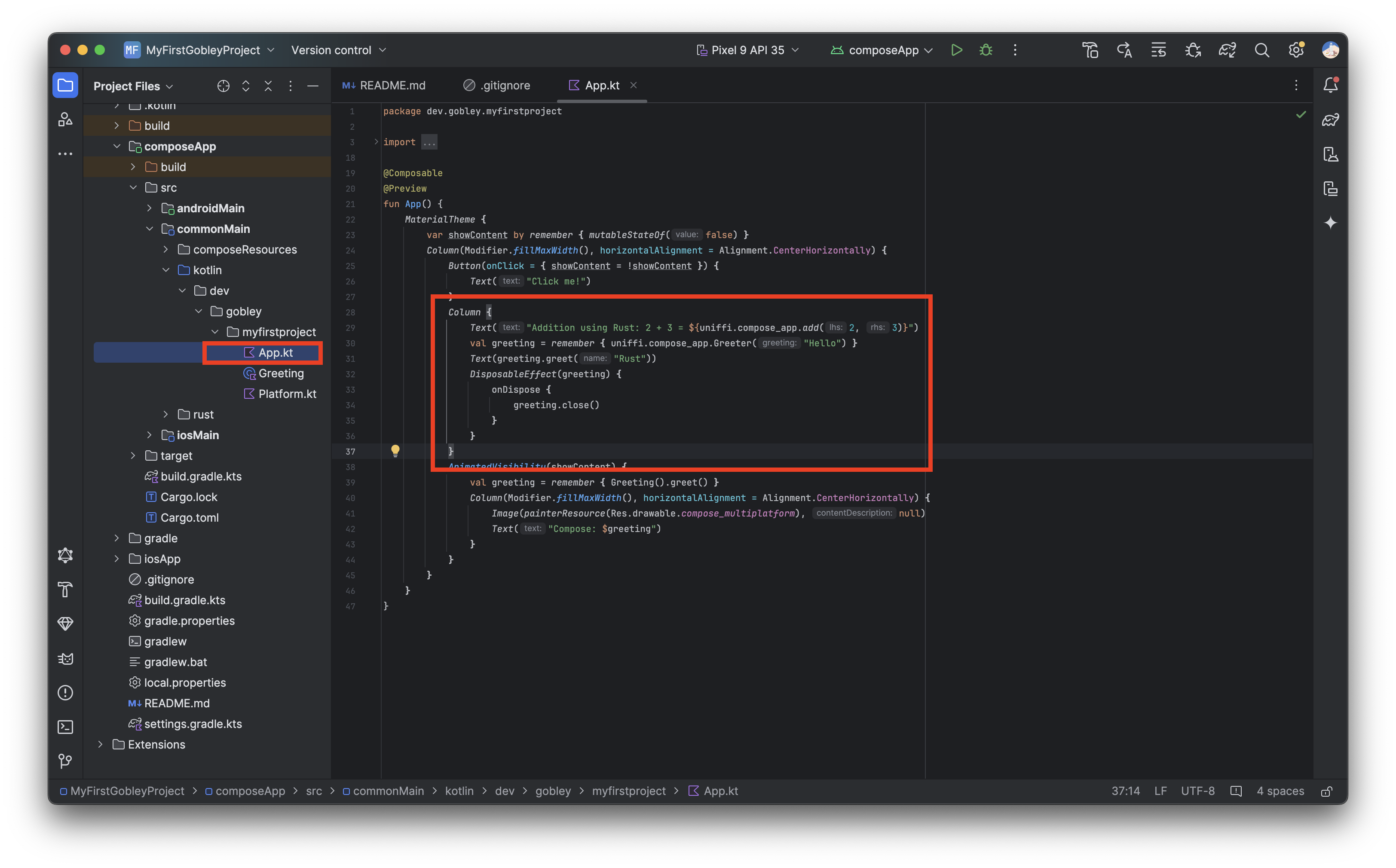
Greeter and add exported on the Rust side are accessible on the Kotlin side! Doc-comments are
also available, so you don't have to write the same description twice.
Let's run the Android app. Select the androidApp run configuration and hit the Run button on the
upper right corner of the screen. You can see the Rust library is included in the final app
automatically, and the app communicates with Rust without any issues.
Let's run the iOS app as well. Open iosApp/iosApp.xcodeproj in Xcode. Run:
open -a "Xcode" ./iosApp/iosApp.xcodeproj
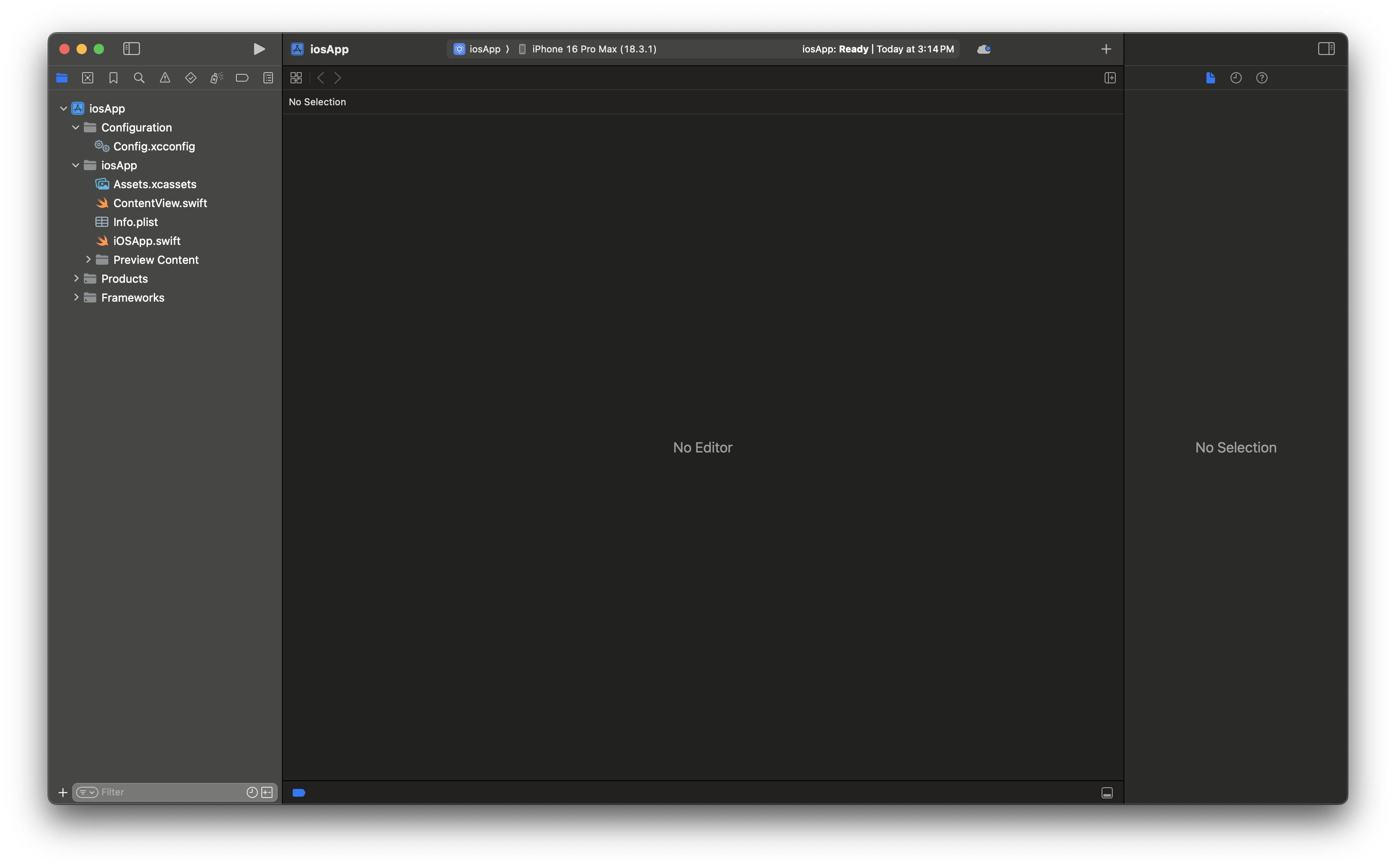
Since the part connecting Swift and Kotlin is handled by the Kotlin Multiplatform Wizard, we can just hit the Run button as well on Xcode.
| Android | iOS |
|---|---|
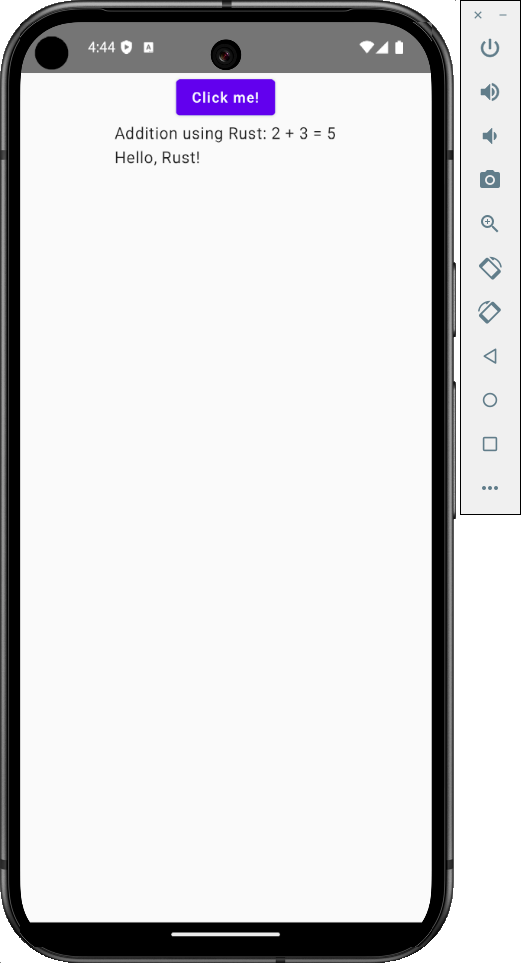 |  |
Next step
And that's how you embed Rust into your Kotlin project. If you need more detailed information about Rustine, please read the documentation.